Friday, March 27, 2015

What are DOCUMENT TYPES of IKONOMIKAL?

DOCUMENT TYPES OF IKONOMIKAL

The DOCUMENT TYPES of IKONOMIKAL in the DOCUMENT SETUP of SYSTEM SERVICES MODULES are the program master file for the different types of documents. Examples are documents issued by government offices and agencies such as commercial registration, licenses, certifications, authorizations, passports, drivers licenses.


How to go to DOCUMENT TYPES of IKONOMIKAL?
  • Click Programs
  • Click Core Modules
  • Click System Services Modules
  • Click Document Setup

System Services . Document Setup


Ikonomikal . Icons

How to create Document Types?
  • Click Document Types to show General Page

Document Types . Document Types


Ikonomikal . Icons

  • Click Code box and enter the desired code
  • Write the Description
  • Click Account box and click Find icon to select choice
  • Click Cost Center box and click Find icon to select choice
  • Click Branch box and click Find icon to select choice
  • Click Object box and click Find icon to select
  • Click Department box and click Find icon to select
  • Write number of days in the box of Adv Reminder
  • Click Disable Reminder box and select Yes or No
  • Click Time box and select desired time


  • Click the icon Document to Expire when there are already entered documents

Tuesday, March 24, 2015

What are SYSTEM SERVICES MODULES of IKONOMIKAL?


SYSTEM SERVICES MODULES are the global set up of master files applicable for use by any of the programs of IKONOMIKAL

How to go to SYSTEM SERVICES MODULES of IKONOMIKAL?


  • Click Programs
  • Click Core Modules
Ikonomikal . Core Modules, 1) System Services Modules


Ikonomikal . Icons


  • Click 1) System Services Modules

System Services Modules . Group of Programs


The SYSTEM SERVICES MODULES has the following groups of programs:
  1. General Setup
    1. Global Settings
  2. Company Setup
    1. Logged In Users
    2. Company Profile
    3. Drop Process Maintenance
    4. System Users
    5. System User Groups
    6. Branch Profile
    7. Department Profile
    8. Country and Location
  3. Document Setup
    1. Document Priority
    2. Code Sequence
    3. Code Seq. Bindings
    4. Custom Info. Structure
    5. Document Tracking
    6. Document Types
  4. Approval Setup
    1. Approval Groups
    2. Approval Steps
    3. Approval Conditions
  5. Accounting Setup
    1. Project Type
    2. Accounting Years
    3. Payment Terms
    4. Payment Account Set
    5. Fund Appropriations
  6. Global Contacts
    1. Contacts Group
    2. Contacts Profile


What is DOCUMENT TRACKING of IKONOMIKAL?

DOCUMENT TRACKING OF IKONOMIKAL

The DOCUMENT TRACKING of IKONOMIKAL in the DOCUMENT SETUP of SYSTEM SERVICES MODULES is the program master file for setting to track documents. It contains the code, document, assigned employee, document type, document reference, start date, end date and document notes. The program has also the history of changes particularly the start and end dates.


The DOCUMENT TRACKING shall be connected to the Alert program of Ikonomikal.

How to go to DOCUMENT TRACKING of IKONOMIKAL?
  • Click Programs
  • Click Core Modules
  • Click System Services Modules
  • Click Document Setup


Ikonomikal - Icons


How to create DOCUMENT TRACKING?

Fill or select appropriate information or data by doing the following:
  • Click Document Tracking to show the General Page
  • Click the New Icon
  • Write Document Code
  • Put Employee ID if document is assigned
  • Write Description of document
  • Click box of Doc Type, then find and select Document Type
  • Write the Reference number of the document
  • Put the Start date or issue date of document
  • Put the End date of expiry date of document
  • Write important Notes about the document
Note: The below detail line reflects the changes of dates or renewal dates of the document. 


Friday, March 20, 2015

What is DOCUMENT PRIORITY of IKONOMIKAL?

DOCUMENT PRIORITY OF IKONOMIKAL

The DOCUMENT PRIORITY of IKONOMIKAL in the DOCUMENT SETUP of SYSTEM SERVICES MODULES is the program master file for priority of documents. The priority is set by putting the sort number of the document.


How to go to DOCUMENT PRIORITY of IKONOMIKAL?
  • Click Programs
  • Click Core Modules
  • Click System Services Modules
  • Click Document Setup

System Services . Document Setup

Ikonomikal . Icons

How to create Document Priority?
  • Click Document Priority
  • Click New Icon
  • Write document code
  • Write the document description
  • Write the document priority sort number

Document Priority . General Page


What are CUSTOM INFO STRUCTURES of IKONOMIKAL?

CUSTOM INFO STRUCTURES OF IKONOMIKAL

The CUSTOM INFO STRUCTURES of IKONOMIKAL in the DOCUMENT SETUP of SYSTEM SERVICES MODULES are the program master files needed only when a document or transaction requires additional field to capture data necessary in the generation of information or report. The fields that can be added are for:

  • Text
  • Date
  • Number


How to go to CUSTOM INFO STRUCTURES of IKONOMIKAL?
  • Click Programs
  • Click Core Modules
  • Click System Services Modules
  • Click Document Setup
Document Setup . Custom Info Structures


Ikonomikal . Icons


How to create Custom Info Structures?

  • Click Customer Info Structures to show the General Page

Custom Info Structures. General Page


  • Click the New Icon
  • Write the Code
  • Write the Description
  • Click the Plus (+) Icon underneath the structure
  • Write the Field Code, Description, Sort number, and the type either Date, Text, or Number
  • Do as above step if additional field or more  is needed
  • Click the Minus (-) Icon to remove
  • Click Select All Icon to remove all

Wednesday, March 18, 2015

What are CODE SEQUENCES of IKONOMIKAL?

CODE SEQUENCES OF IKONOMIKAL

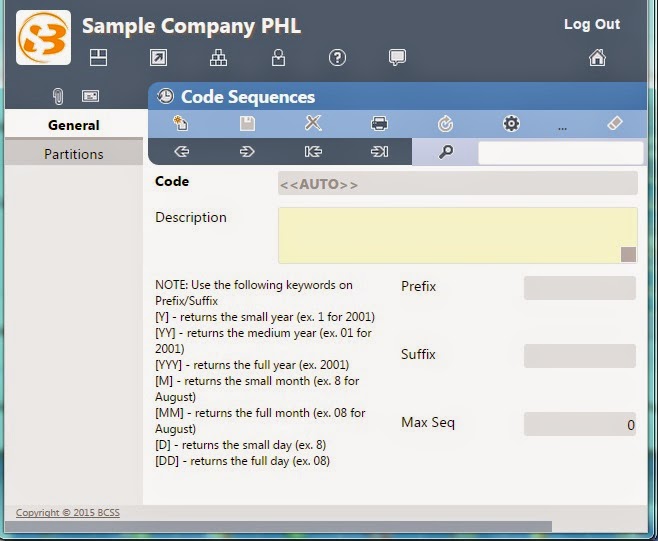
The CODE SEQUENCES of IKONOMIKAL in the DOCUMENT SETUP of SYSTEM SERVICES MODULES are the program master files where the number sequence of transaction or document is being set. This is the source of the automated numbering system of all documents and transactions references.


How to go to CODE SEQUENCES of IKONOMIKAL?
  • Click Programs
  • Click Core Modules
  • Click System Services Modules
  • Click Document Setup


Document Setup . Code Sequences


Ikonomikal . Icons


How to create the Code Sequences?

There are two pages of Code Sequences

1) General Page of Code Sequences
  • Click 2) Code Sequences to show the General Page
  • Click the New Icon
  • Write the code sequence identifier code
  • Write the Description of the code sequence
  • You may or may not write the Prefix or Suffix of the sequence number
  • Write the maximum sequence number
Code Sequences . General Page


NOTE: Use the following keywords on Prefix/Suffix
[Y] - returns the small year ( ex. 1 to 2001)
[YY] - returns the medium year (ex. 01 for 2001)
[YYY] - returns the full year (ex. 2001)
[M] - returns the small month (ex. 8 for August)
[D] - returns the small day (ex. 8)
[DD] returns the full day (ex. 08)

2) Partitions Page of Code Sequences
  • Click Partitions Page
  • Write the Partition Code in the first column
  • Write the Description of the Partition Code in the second column
  • Write the start number in the From column
  • Write the end number in the To column
  • Do the same in the last 3 steps in the succeeding Partition


Sunday, March 15, 2015

What are CODE SEQ. BINDINGS of IKONOMIKAL?

CODE SEQ. BINDINGS OF IKONOMIKAL

The CODE SEQ. (SEQUENCE) BINDINGS of IKONOMIKAL in the DOCUMENT SETUP of SYSTEM SERVICES MODULES are the program master files for assigning document code sequence to a particular program. Upon saving a document or transaction of that program will generate an automatic reference number as per the sequence assigned. It will only be effective if no manual number of that program was entered before saving.


How to go to CODE SEQ. BINDINGS of IKONOMIKAL?
  • Click Programs
  • Click Core Modules
  • Click System Services Modules

System Services Modules - Document Setup


  •  Click 3) Document Setup


Document Setup . Code Seq. Bindings


How to create Code Seq. Bindings?
  • Click 1) Code Seq. Bindings

Code Seq. Bindings . General Page Page Part 1


Code Seq. Bindings . General Page Page Part 2

Fill the following blank boxes with appropriate information and data:

  1. Code - find and select
  2. Description - automatically appears
  3. Program Code - Automatically appears
  4. Program Description - Automatically appears
  5. Doc Seq H - find and select Document Sequence Group
  6. Doc Seq D - find and select Document Specific Sequence Number
  7. Reversal DSH - find and select Document Sequence Group
  8. Reversal DSD - find and select Document Specific Sequence Number
  9. Use CIS (Custom Information Structure) - find and select
  10. Approval Steps - find and select
  11. Report Initials 1 - find and select
  12. Report Initials 2 - find and select 


  • Click Find Box


  • Click Find Magnifier


Code Seq Bindings . General Find Page

  • Double Click a Program to select, for example AR/AP Modules


  • Fill the column boxes of the following information and data
  1. Doc Seq H - find and select Document Sequence Group
  2. Doc Seq D - find and select Document Specific Sequence Number
  3. Reversal DSH - find and select Document Sequence Group
  4. Reversal DSD - find and select Document Specific Sequence Number
  5. Use CIS (Custom Information Structure) - find and select
  6. Approval Steps - find and select
  7. Report Initials 1 - find and select
  8. Report Initials 2 - find and select