
The WAREHOUSE INVENTORY CONTROL (IC) ITEM PROFILE of iKonomikal Cloud ERP has 10 windows
to fill or show information namely
1)
General
2)
Alternative Item/s
3)
Part Of
4)
Account Setup
5)
Specific UOM Conversions
6)
Primary Customers
7)
Approved Suppliers
8)
Re-Order Levels
9)
More Images
10) Item Balance

May we inform before we proceed with the creation of item
that the warehouse is the storage place of stocks in a company. It could also
be a storage place of the company’s customer under a special agreement. The item is classified either a stock item or not. Non stock item are those
received but not stored because the item is directly handed over to the end
user. Both are called warehouse item. A Warehouse Management System (WMS) is
necessary to properly manage the warehouse items’ movements. To begin with is
to create a master file of the item called IC ITEM PROFILE in iKonomikal Cloud
ERP.
The images below are the ways to go to the IC ITEM PROFILE of
iKonomikal Cloud ERP.
A click of IC Item Profile in the Favorites Modules under
Shortcut list on the right side is the fastest way to go to the desired program.
But this needs first to put the user program in the Favorites for the quick
access.

While the step by step procedure has to start by clicking
and following the flow of the arrows from the top:
Programs>Main>Core Business>Inventory Control and
Assembly>General Settings>IC Item Profile.

Click the star icon on the right side after the box to put the IC Item Profile in the list of Shortcuts of the Favorites Module. The image above shows yellow color star icon. It means the program is already in the Favorites Module.
HOW TO CREATE AN IC
ITEM PROFILE
Click the IC Item
Profile
from the General Settings of the Inventory Control and Assembly Modules, the
Warehouse Management System (WMS) of iKonomikal Cloud ERP. This first window to
show is General.
Click the create icon, then start
filling the boxes with appropriate information of all the windows from 1 to 9.

1) General
Code (Auto number or manually inputted)
Description
Stock Item box (to Check
as a stock item, or Uncheck)
Group UOM
UOM
Brand/Mfg: Part #:
Additional Information
1:
Additional Information
2:
Additional Information
3:
Country of Origin
(Select)
Default Image (To
attach)
Dimension And Weight:
Length in CBM Width in CBM
Height in CBM Weight in KG
Default LOT
Barcode

2) Alternative Item/s
Alternative item is an item similar or replacement in case this
item profile is not available.

3) Part Of
The item to put in the Part of is an item that makes this
item profile a part of. It could be an ingredient of a finished good or a spart
part of another spare part, or a part of a unit or machine.

4) Account Setup
The Account Setup is mostly related to accounting codes automatically
generated and how an item is accounted in a different movements. The master
files to select are explained in separate blogs.
Account Set (Select) –
About default GL Codes to use for Internal movements
Default Category
(Select) – About default GL Codes to use in Shipment
Default Expense /
Revenue Acc’t (Select) – self explanatory
Default CC (Select Cost
Center) – self explanatory
Default OG (Select Object
Group) – self explanatory
Line Item Group
(Select)
(Optional) Terms
Sequence Group (Select)
Use LOT on any kind of
Shipment (Check/Uncheck)
Use LOT on any kind of
Receipt (Check/Uncheck)
Use LOT on any kind of
Internal Operations (Check/Uncheck)


 5) Specific UOM Conversions
Specific UOM Converstions refers to the conversions of UOM
of the item in the General window to the different UOM to use of the Specific
UOM Conversions window.
The columns of the Specific UOM Conversions are:
First column
UOM (THIS UOM’) a UOM other than the item UOM
Second column
Stock UOM=>’THIS UOM’
Third column
THIS UOM=> ‘Stock UOM’

EXAMPLE CALCULATION
For 3 units of measure
conversion
Box is the item unit of measure
a)
1 Box = 1/24 Pallet
b)
1 Box = 6 Packs
c)
1 Box = 24 Liters
PALLET
2nd COLUMN, 1 BOX =
1/24 PALLET
3rd COLUMN, 1 PALLET =
24 BOX
Pallet COLUMN 2 = 0.0416666666666667
Pallet COLUMN 3 = 24
PACK
2nd COLUMN, 1 BOX = 6
PACK
3rd COLUMN, 1 PACK =
1/6 BOX
Pack COLUMN 2 = 6
Pack COLUMN 3 = 0.1666666666666667
LITER
2nd COLUMN, 1 BOX = 24
LITERS
3rd COLUMN, 1 LITERS =
1/24 BOX
Liter COLUMN 2 = 24
Liter COLUMN 3 = 0.0416666666666667


6) Primary Customers
Those who regularly order the warehouse item in bulk are
considered the Primary Customers. They are the reason the item is being stored
in the warehouse. They usually have price and volume agreement with the
company. Having identified the Primary Customers is usually a system
requirement of a certified ISO company.
Columns to fill
C/S (Customer Code and
Name)
Addr (Customer Address Code)
Item# (Customer Item
Code)
Item Desc (Description of
Item)
Comm# (Item Commissioning
Number)
Drawing# (Item Drawing
Number)
Project# (Item Project
Number)
Minimum Order (of Item)

7) Approved Suppliers
Approved Suppliers are the preferred sources of the item or
similar items. The company usually have an agreement containing the requirement
to wit discounted item price, constant supply, accuracy of delivery and the standard
quality and specifications. The embodied commitment assures the availability of
the item for use, production or resale. Approved Suppliers is a system
requirement of a certified ISO company.
Columns to fill
C/S (Supplier Code and
Name)
Addr (Supplier Address
Code)
Item# (Customer Item
Code)
Item Desc
(Description of Item)
Comm# (Item
Commissioning Number)
Drawing# (Item Drawing
Number)
Project# (Item Project
Number)
Minimum Order (of Item)
Minimum Order (of Item)

8) Re-Order Levels
Re-Order Level is set primarily to maintain the desired quantity
stored of an item enough to cover the requirement of consumption internally and
externally. It entirely depends on the demand and the lead time to make the
item available just in time.
Columns to fill
Branch (or Company)
W/H (Warehouse)
Min ReOrder (Minimum
Quantity)
Mx ReOrder (Maximum
Quantity)
Ave Consumption
(Average Quantity)
LeadTime(Days) (Number
of days to receive from reorder)

9) More Images
Upload the pictures of all the angles or sides of the item
for better identification.
Click the plus icon to add pictures from a file.

10) Item Balance
The Item Balance does not require setup. Meaning there is no
action for this window during item creation.

For curiosity sake, it is all about status of item balance
in different aspect. The item has to be used first in transaction or must
have movement to show the item balances.
Steps to see the item balance
Put first the cut off Fiscal Period
Click the Get Summary icon in green background
Then see the results in the following columns:
1)
Branch\W/H (Branch or Company\Warehouse Code)
2)
Total
3)
On Stock
4)
On Prj
(Project)
5)
On Cnsg
(Consignment)
6)
On Trf
(Transfer)
7)
(-) On
PO (Purchase Order)
8)
On SO
(Sales Order)
9)
On Assm
(Assembly)
10) (-) On D''Assm (Dis Assembly)
11) Ave U/C (Average Unit Cost)
12) Std U/C (Standard Unit Cost)
13) Usr U/C (User Unit Cost)
14) QT U/C (Quotation Unit Cost)
15) SO U/C (Sales Order Unit Cost)
16) RFQS U/C (Request for Quotation to Supplier)
17) PO U/C (Purchase Order Unit Cost)

Click the SAVE icon.

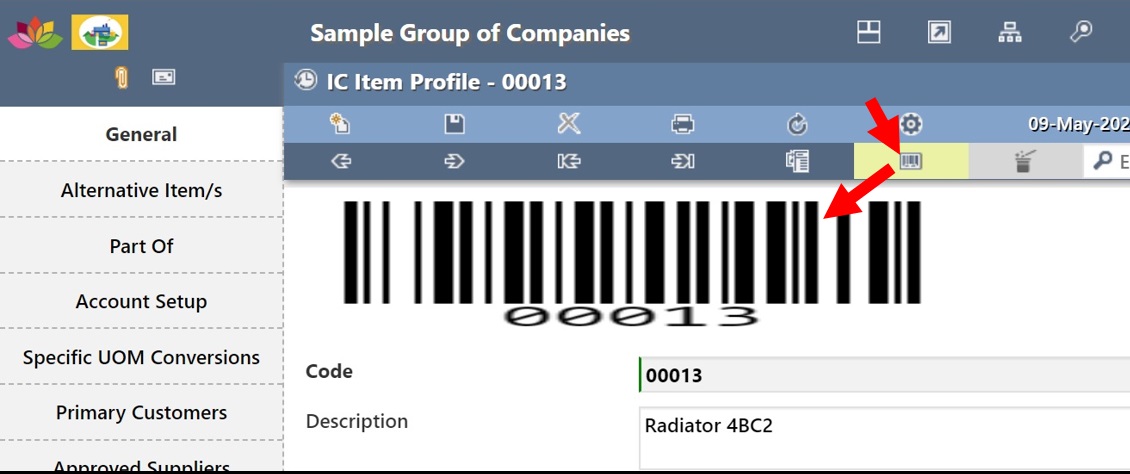
The Item Code and the Bar Code are automatically created
simultaneously.

Click the Bar Code icon to show the Document Bar Code.
Click the icon again to un-show the bar code.
The creation of IC Item
Profile is finished.
There are separate blogs for
1.
Updating of existing IC Item Profile
2.
Uploading of multiple IC Item Profile
3.
Updating of existing multiple IC Item Profile
END OF BLOG
------------------------------------------------------------------------------------------
For inquiries contact:
Companies:
iKonomikal Cloud Services
Department of Trade and Industry Cert#: 04929944
Mayor’s Permit: BCN 1914-56
TIN: 224 089 131 VAT Registered
TR iKonomikal Consultants
Department of Trade and Industry Cert#: 04929961
Mayor’s Permit: BCN 1914-56-01
TIN: 224 089 131 VAT Registered
Address:
Ground Floor, TG Rolluqui Building
117 Burgos Street Corner Regalia Street
Brgy. Bagong Silang, Poblacion, Santa Cruz
Marinduque, 4902, Region 4B, Philippines
Links:
Skype: tgrolluqui@hotmail.com
Phones
M: +63 918 229 5934 (Smart)
M: +63 917 813 4905 (Globe)
T: +63 42 704 5312 (PLDT)
iKonomikal Cloud ERP
Software Website: https://ikonomikal.com
Company Website: https://hq.ikonomikal.com
Tech Updates: https://docs.ikonomikal.com/
Agreements: https://policy.ikonomikal.com/
------------------------------------------------------------------------------------------
Suggested modifications, customizations and developments with general industry use is FREE OF COST. 24/7 online Technical Support


